In the digital world of 2026, your brand’s identity starts with a single image: The Logo. Whether you are starting a blog, a YouTube channel, or a small business, a professional logo is no longer a luxury—it is a necessity. But you don’t need a massive budget to create one.
This guide will walk you through everything from the basic concepts of how to design a logo with a hands-on tutorial using free tools.
What is a Logo and Why is it Important?
A logo is a symbol, text, or image that identifies your business or brand. Think of it as the “face” of your company. It tells your audience who you are and what you stand for.
Why Your Brand Needs a Logo:
- Creates a Great First Impression: It’s the first thing people notice. A clean logo builds instant trust.
- Builds Brand Identity: It helps you stand out from competitors.
- Encourages Brand Loyalty: Think of the Nike “Swoosh” or the Apple logo. Familiarity leads to trust.
- Works Everywhere: From your website favicon to social media profiles and business cards, your logo is your signature.
Best Free Platforms for Logo Design in 2026
To help you choose the right tool, here is a comparison of the top platforms currently available for free users:
| Tool | Best For | Ease of Use | Key Feature |
| Canva | Beginners & Social Media | Very Easy | Massive library of templates & elements. |
| Adobe Express | Professional Aesthetics | Easy | High-quality fonts and unique filters. |
| LogoMakr | Custom Icon Design | Moderate | Precise control over shapes and layers. |
| Hatchful (Shopify) | Quick AI Generation | Instant | Fast industry-based logo suggestions. |
| Looka | Design Inspiration | Easy | Great for seeing how logos look on mockups. |
Read Also: How to Start a Blog for Free in 2026: A Comprehensive Guide for Beginners
Step-by-Step Tutorial: How to Design a Logo in Canva
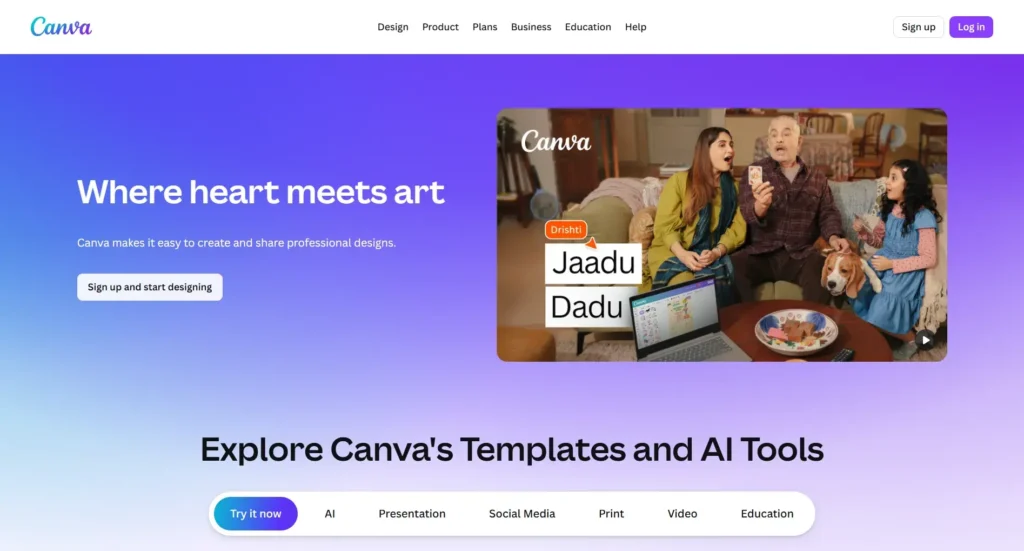
Canva is the most popular choice because of its “Drag-and-Drop” simplicity. Follow the below given steps to create your logo for free:
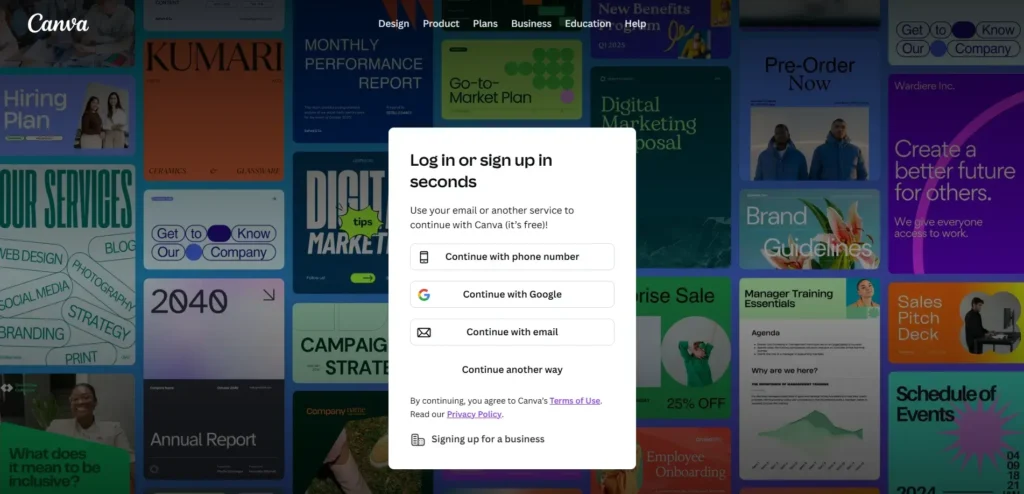
Step 1: Sign Up and Search
Go to Canva.com and create a free account. In the search bar, type “Logo”. This will open a blank canvas sized at 500 x 500 pixels, which is the standard size for most platforms.
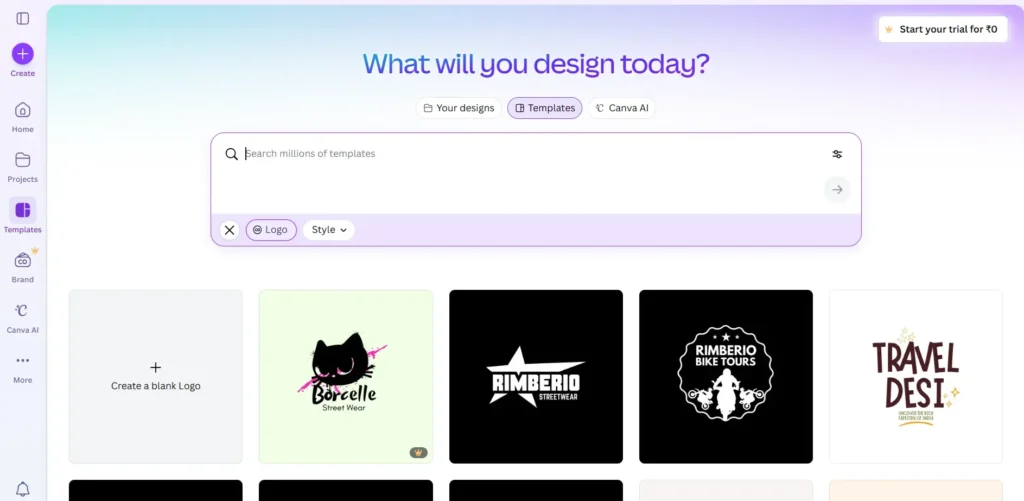
Step 2: Choose a Template (or Start Blank)
You will see thousands of templates on the left sidebar.
Tip: Select a template that matches your niche (e.g., Minimalist, Tech, or Organic).
If you want a truly unique logo, start with a blank page and add your own elements.
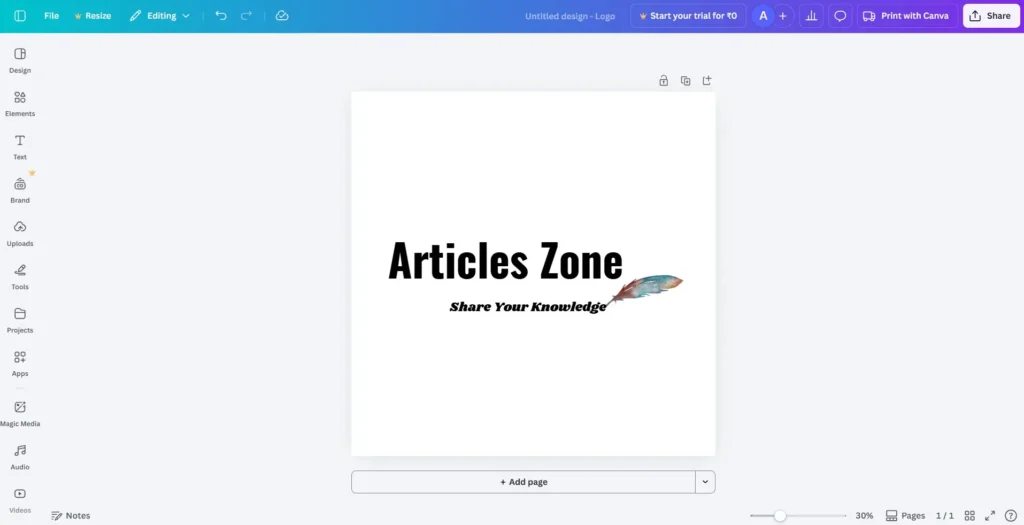
Step 3: Add Your Brand Name
Click on the text in the template and type your brand name.
Font Choice: Use the top toolbar to change the font. For a professional look, stick to clean fonts like Montserrat or Open Sans or any that you like. Avoid “handwriting” fonts unless you are in a creative niche like fashion or art.
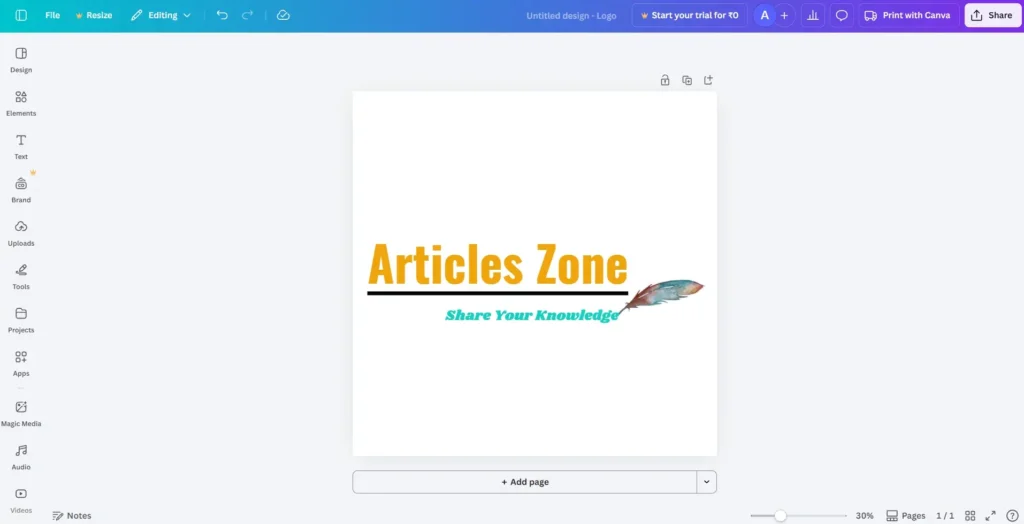
Step 4: Customize Colors and Icons
Click on the background or any icon to change its color.
Pro Tip: Use a maximum of 2-3 colors. Too many colors can make your logo look messy when printed or viewed on small mobile screens.
Go to the “Elements” tab to search for specific icons (e.g., a “leaf” for a sustainability blog).
Step 5: Alignment and Balance
Ensure your text and icon are perfectly aligned. Use Canva’s “Smart Guides” (the purple lines that appear when you move items) to make sure everything is centered.
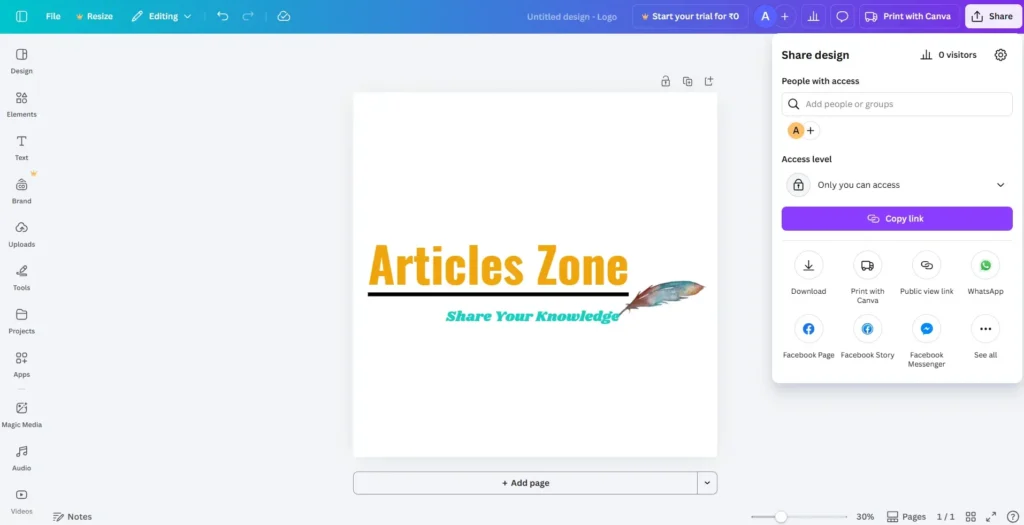
Step 6: Download Your Logo
Once you are happy with the design, click the “Share” button in the top right corner and select “Download”.
Format: Choose PNG for the highest quality.
Note: Canva Pro allows “Transparent Backgrounds,” but if you are on the free version, you can use a free site like remove.bg to make your background transparent later.